Using NVM (Recommended for Developers)
Node Version Manager (NVM) lets you install and switch between multiple versions of Node.js and npm on the same machine — useful when different projects require different Node versions.
- Download and run the NVM installation script:
curl -o- https://raw.githubusercontent.com/nvm-sh/nvm/v0.40.1/install.sh | bash - Apply the changes to your current shell session:
source ~/.bashrc - Install the latest Long-Term Support (LTS) version of Node.js, which includes npm:
nvm install --lts
Using NodeSource (For a Specific Stable Version)
Use this method if you need a specific major version of Node.js (for example, v20 or v22) installed directly via apt.
- Add the NodeSource repository for your desired version (here, 20.x):
curl -fsSL https://deb.nodesource.com/setup_20.x | sudo -E bash - - Install Node.js (this also installs npm):
sudo apt install -y nodejs
Verify the Installation
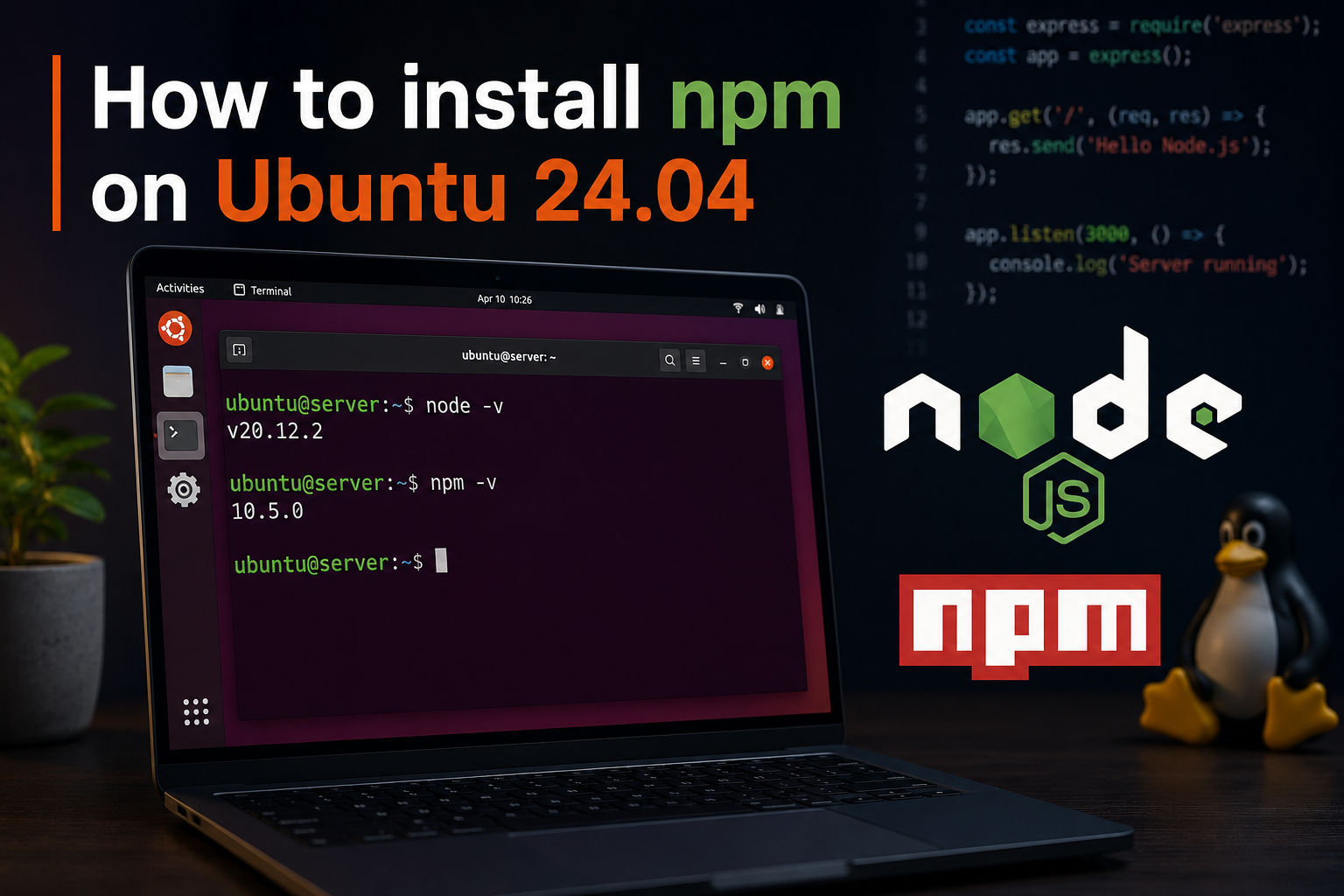
Regardless of the method used, confirm that Node.js and npm installed correctly by checking their versions:
node -v
npm -v
Each command should return a version number. If you see an error like command not found, the installation didn’t complete successfully — restart your terminal and try again.