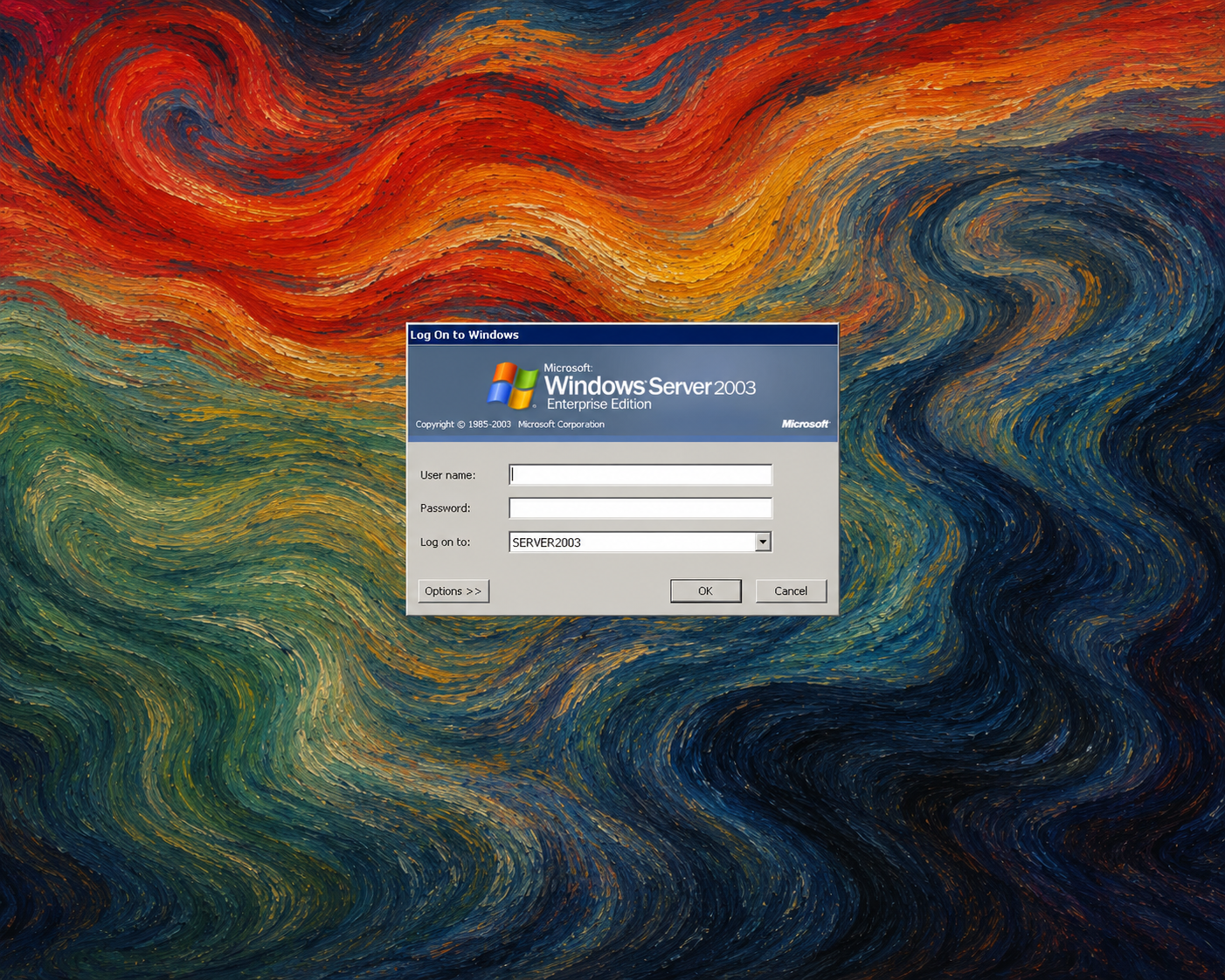
In Windows 2000, Windows XP, and Windows Server 2003, the classic Ctrl+Alt+Del logon screen is displayed on top of a solid background color. While most systems use the default color scheme, it is possible to customize the background by modifying a single registry value.
I originally encountered this while managing a group of servers where one machine displayed a different logon background color from the others. The discrepancy was caused by an upgrade from an earlier version of Windows, which had preserved the existing color setting.
The background color is controlled by the following registry key:
HKEY_USERS\.DEFAULT\Control Panel\ColorsThe value named Background contains three numbers representing the RGB (Red, Green, Blue) color components. By changing these values, you can select any color you prefer.
Default Windows 2000 Blue
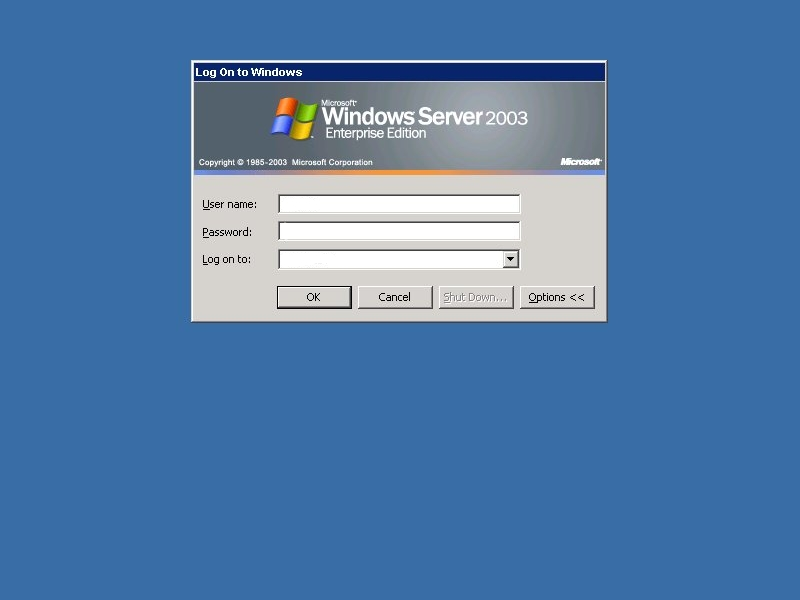
The classic Windows 2000 logon screen uses the following RGB values:
Windows Registry Editor Version 5.00

[HKEY_USERS\.DEFAULT\Control Panel\Colors]
"Background"="58 110 165"
Default Windows Server 2003 Gray
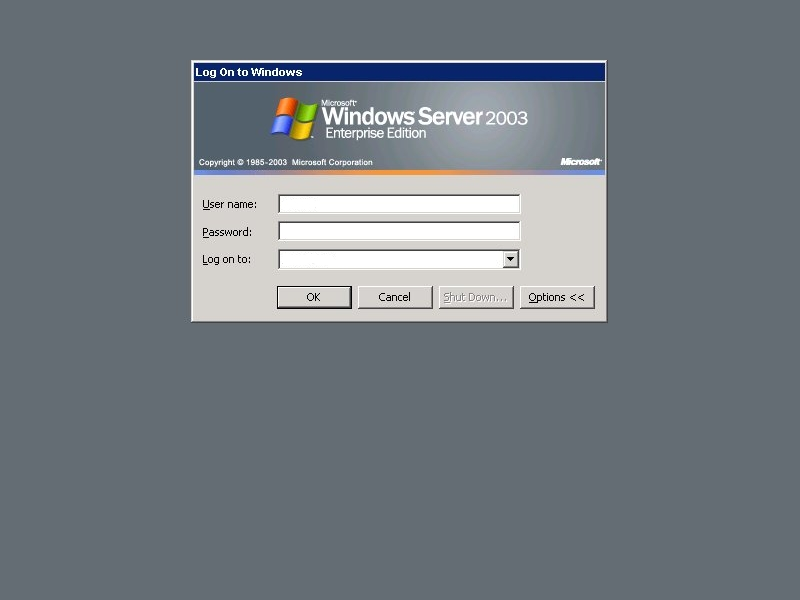
Windows Server 2003 changed the default background to a neutral gray:
Windows Registry Editor Version 5.00

[HKEY_USERS\.DEFAULT\Control Panel\Colors]
"Background"="102 111 116"
Applying the Change
After modifying the registry value, log off or restart the system to see the updated background color on the Ctrl+Alt+Del logon screen.
Because the value uses standard RGB notation, any color combination can be used. This can be useful for standardizing server appearances, differentiating environments, or simply restoring the classic Windows 2000 blue background.