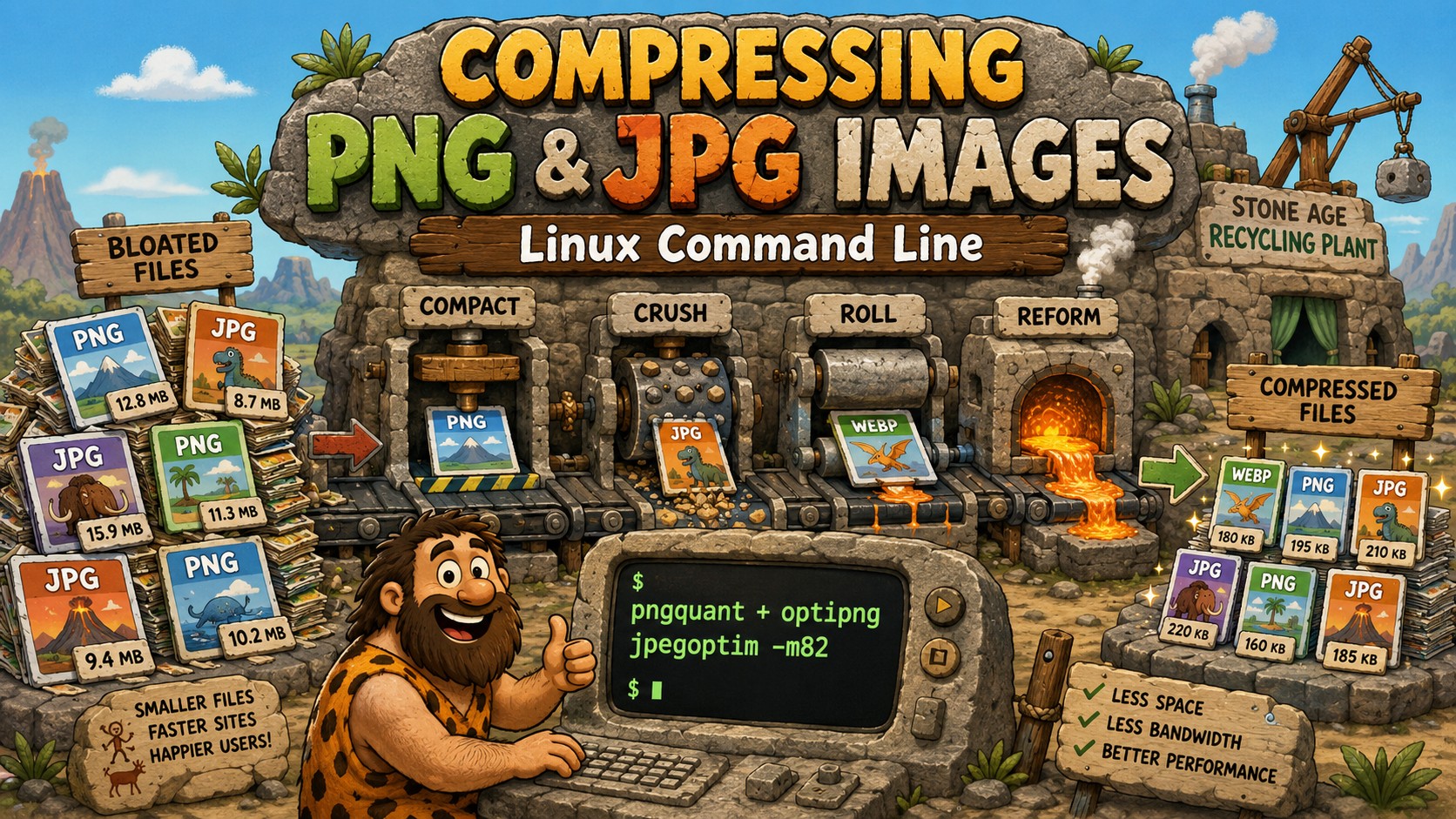
WordPress generates a small mountain of image files over the years — originals, plus a thumbnail for every registered image size. Before (or after) cleaning up the sprawl, it pays to compress what you keep. Here’s the toolset for PNG and JPG on the command line, covering both Debian and Enterprise Linux 8 (RHEL/Alma/Rocky).
PNG Tools
Several tools, two categories: lossless (identical pixels, smaller file) and lossy (near-identical to the eye, dramatically smaller file).
- pngquant — lossy. Converts to an 8-bit palette; typically 60–80% smaller with visually near-identical results. This is where the big savings are for web images.
- optipng — lossless. The long-time standard optimizer, single-threaded.
- oxipng — lossless. The modern, multithreaded successor to optipng. Faster, same idea.
- pngcrush — lossless. Still works; older and slower than the above.
- zopflipng — lossless, maximum compression, painfully slow. For final assets where every byte counts.
Installing
Debian:
apt install pngquant optipng oxipng
EL8 (requires EPEL):
dnf install epel-release
dnf install optipng pngquant pngcrush
Note: oxipng is not packaged for EL8. Options: grab the static musl binary from the project’s GitHub releases page and drop it in /usr/local/bin, or simply skip it — optipng -o5 gets ~95% of the same result, just slower.
One-offs
# Lossy palette reduction (the big win):
pngquant --quality=70-90 --ext .png --force image.png

# Lossless optimization:
optipng -o2 image.png
The --ext .png --force combination overwrites the file in place — back up first on the initial run.
The winning combo
Lossy first, then lossless cleanup:
pngquant --quality=70-90 --ext .png --force image.png && optipng -o2 image.png
On a resource-constrained server, -o2 keeps CPU time reasonable; the pngquant step is where the real savings are anyway.
Batch script with size reporting
for f in *.png; do
  before=$(stat -c%s "$f")
  pngquant --quality=70-90 --ext .png --force "$f" && optipng -quiet -o2 "$f"
  after=$(stat -c%s "$f")
  echo "$f: $before -> $after bytes"
done
Two behaviors worth knowing:
- The quotes around
"$f"matter if any filename contains spaces. - If pngquant can’t meet the 70–90 quality target for an image, it exits with an error and the
&&skips optipng for that file, leaving the original untouched. That’s usually the right behavior. Use;instead of&&if you want optipng to run regardless.
Safety first
mkdir -p originals && cp *.png originals/
Keep untouched originals until you’ve reviewed the results — pngquant is lossy and there’s no undo.
JPG Tools
The PNG tools don’t touch JPGs. The workhorse here is jpegoptim.
Debian:
apt install jpegoptim
EL8 (EPEL):
dnf install jpegoptim
One-offs
# Lossless — strips metadata, optimizes Huffman tables, ~5-10% savings:
jpegoptim --strip-all image.jpg

# Lossy — re-encode capped at quality 82; the real savings (often 30-60%):
jpegoptim --strip-all -m82 image.jpg
The -m82 flag means “only re-encode if current quality is above 82, and cap it there.” Files already below that threshold are left alone (aside from lossless optimization), so the command is safe to run repeatedly. Quality 80–85 is the sweet spot for web photos; scans hold up well at 82.
Batch
jpegoptim takes multiple files natively — no loop needed:
jpegoptim --strip-all -m82 *.jpg
It prints its own before/after summary per file.
Case-sensitivity gotcha
Decades of uploads mean a mix of .jpg, .JPG, and .jpeg. Catch them all:
find . -maxdepth 1 -iname '*.jp*g' -exec jpegoptim --strip-all -m82 {} +
Drop -maxdepth 1 to recurse through an entire uploads tree.
A caution on –strip-all
It removes all metadata: EXIF, color profiles, and any embedded copyright fields. For web-serving copies that’s usually desirable — smaller files, no camera metadata leaking. If you deliberately embed copyright in EXIF, strip selectively with --strip-exif --strip-iptc instead, or skip stripping.
Bonus: WebP
For photographic content, WebP usually beats any crushed PNG or optimized JPG by a wide margin:
# Debian: apt install webp    |    EL8: dnf install libwebp-tools
cwebp -q 82 image.png -o image.webp
Several WordPress plugins can serve WebP automatically with PNG/JPG fallback for older browsers.
Quick Reference
| Task | Command |
|---|---|
| PNG, big savings (lossy) | pngquant --quality=70-90 --ext .png --force f.png |
| PNG, lossless | optipng -o2 f.png |
| PNG, best combo | pngquant ... f.png && optipng -o2 f.png |
| JPG, safe repeatable | jpegoptim --strip-all -m82 f.jpg |
| JPG, whole tree | find . -iname '*.jp*g' -exec jpegoptim --strip-all -m82 {} + |
| WebP conversion | cwebp -q 82 in.png -o out.webp |